

Complete Guide With Docker Compose Examples
Getting SMTP email delivery working in Baserow or n8n on Elestio can be surprisingly tricky. Both applications rely on environment variables—but each uses a different naming convention, and Elestio’s CI/CD model adds a layer of variable substitution that often leads to confusion or silent failures.
This guide walks you through:
- How Elestio handles environment variables
- Why your SMTP settings may not be applied
- The correct SMTP configuration for Baserow and n8n
- SMTP examples for multiple popular email providers
- How to properly restart your services so your new settings take effect
If you prefer a video walk through, I have done one here:
🧩 How Environment Variables Work on Elestio
There are two places Elestio pulls environment variables from:
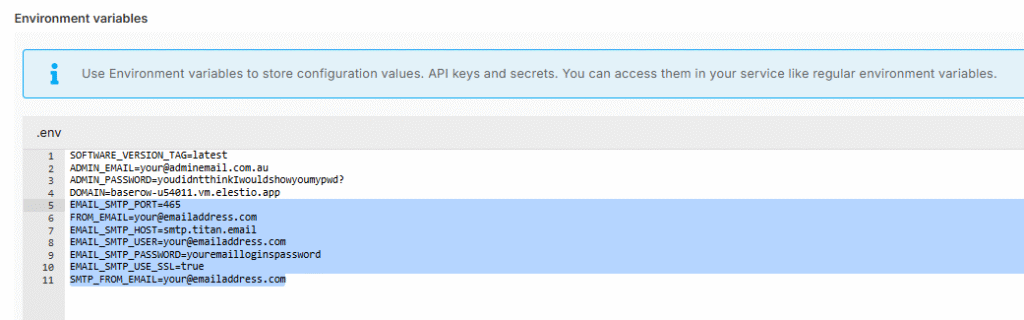
1. Environment Variables Panel (.env-like layer)
Values here become available to Docker Compose as ${VAR} placeholders.
2. docker-compose.yaml
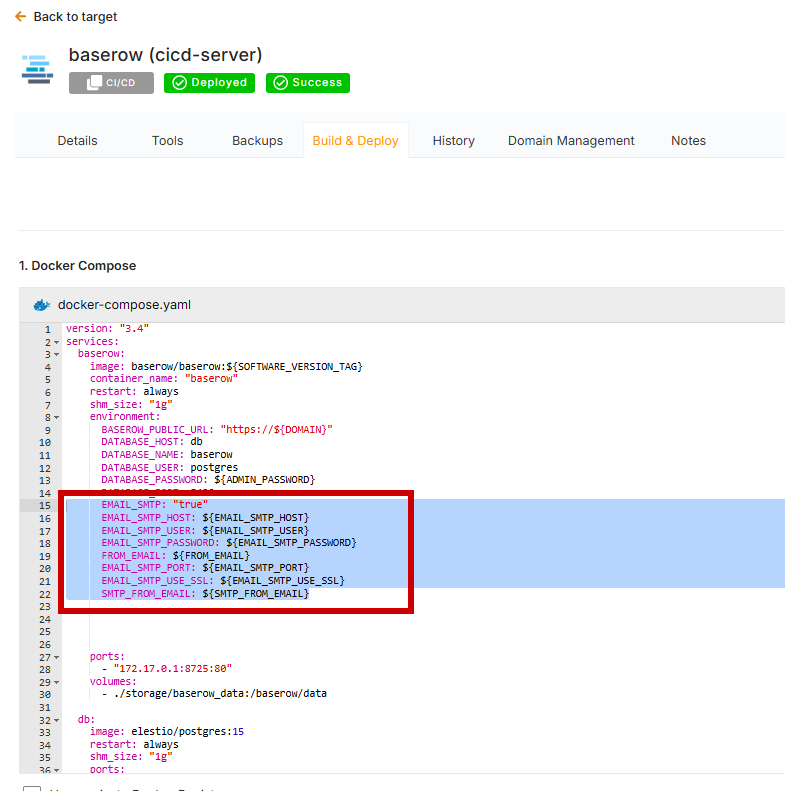
This file injects variables into the container under the environment: block.
Inside the running container, there is one final flat environment, where the last substituted value wins.
If you modify variables but do not redeploy, the container continues using old settings.
🔁 Restarting Containers (Required for SMTP Changes)
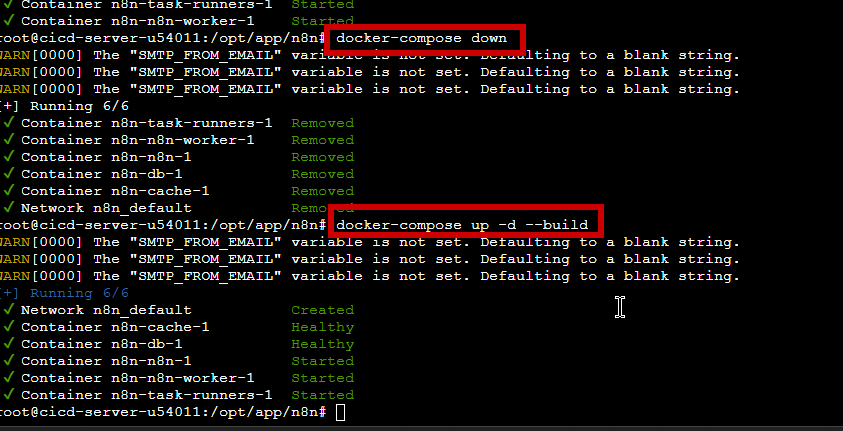
From the Elestio Terminal:

docker-compose down
docker-compose up -d --build
This fully rebuilds the service with the new environment values.
If you skip this, SMTP will not work even if your configuration is correct.
📨 SMTP Configuration for Baserow
Baserow requires very specific variable names.
If even one is incorrect, it will silently fail.
1. docker-compose.yaml (Baserow service)
Inside the environment: block:
EMAIL_SMTP: "true"
EMAIL_SMTP_HOST: ${EMAIL_SMTP_HOST}
EMAIL_SMTP_USER: ${EMAIL_SMTP_USER}
EMAIL_SMTP_PASSWORD: ${EMAIL_SMTP_PASSWORD}
FROM_EMAIL: ${FROM_EMAIL}
EMAIL_SMTP_PORT: ${EMAIL_SMTP_PORT}
EMAIL_SMTP_USE_SSL: ${EMAIL_SMTP_USE_SSL}
SMTP_FROM_EMAIL: ${SMTP_FROM_EMAIL}
2. Environment Variables (Elestio panel)
EMAIL_SMTP_PORT=465
[email protected]
EMAIL_SMTP_HOST=smtp.youremailhost.com
[email protected]
EMAIL_SMTP_PASSWORD=youremailloginspassword
EMAIL_SMTP_USE_SSL=true
[email protected]
SMTP Configuration for n8n (Elestio Pipeline Version)
n8n uses different variable names, so copying Baserow’s variables will not work.
1. docker-compose.yaml (n8n service)
N8N_EMAIL_MODE: ${N8N_EMAIL_MODE}
N8N_SMTP_HOST: ${N8N_SMTP_HOST}
N8N_SMTP_PORT: ${N8N_SMTP_PORT}
N8N_SMTP_USER: ${N8N_SMTP_USER}
N8N_SMTP_PASS: ${N8N_SMTP_PASS}
N8N_SMTP_SENDER: ${SMTP_FROM_EMAIL}
N8N_SMTP_SSL: ${N8N_SMTP_SSL}
2. Environment Variables (Elestio panel)
N8N_EMAIL_MODE=smtp
N8N_SMTP_HOST=smtp.youremailhost.com
N8N_SMTP_PORT=465
[email protected]
N8N_SMTP_PASS=youremailloginspassword
[email protected]
N8N_SMTP_SSL=true
📬 Common SMTP Settings for Popular Email Providers
Below is a copy-paste-friendly reference for the most common email hosts.
⭐ 1. Titan Mail (Hostinger / Namecheap Titan)
Used by many managed hosting platforms.
SMTP Host: smtp.titan.email
Port (SSL): 465
Port (TLS): 587
Username: your full email address
Password: your email password
SSL: true (for 465)
TLS: true (for 587)
2. Gmail (Google Workspace or Gmail.com)
Gmail requires an App Password if 2FA is enabled (recommended).
SMTP Host: smtp.gmail.com
Port (TLS): 587
Port (SSL): 465
Username: your Gmail address
Password: App Password (16-char)
TLS: true (preferred)
SSL: true (only for 465)
💡 Gmail strongly prefers 587 + TLS, not SSL on port 465.
3. Outlook / Office365 / Microsoft 365
SMTP Host: smtp.office365.com
Port (TLS): 587
Username: your email
Password: your email password or App Password
TLS: true
Office365 does not support port 465.
4. Zoho Mail
SMTP Host: smtp.zoho.com
Port (TLS): 587
Port (SSL): 465
Username: your full email
Password: app-specific password (required)
SSL/TLS: true depending on port
5. Namecheap Private Email (non-Titan)
SMTP Host: mail.privateemail.com
Port (SSL): 465
Port (TLS): 587
Username: full email
Password: your email password
⭐ 6. Fastmail
SMTP Host: smtp.fastmail.com
Port (TLS): 587
Username: full email
Password: app password
TLS: true
7. Proton Mail (Using Proton Mail Bridge)
You must install Proton Mail Bridge first.
SMTP Host: 127.0.0.1 (or bridge hostname)
Port: 1025 (default Bridge port)
Username: bridge-generated
Password: bridge-generated
SSL/TLS: false (handled by Bridge)
🧪 Testing SMTP
Baserow
Send:
Settings → Users → Invite User
n8n
Use:
Settings → Users → Invite User
OR create a workflow:
Manual Trigger → Send Email Node (Use Instance Settings)
If nothing sends, inspect env inside container:
docker exec -it n8n env | grep SMTPThis shows the real values the container is using.
Final Notes
To ensure working SMTP on Elestio for both Baserow and n8n:
✔ Define variables correctly in docker-compose
✔ Provide real values in the Environment panel
✔ Restart your services with a full rebuild
✔ Use the correct SSL/TLS/port combination for your provider
✔ For Gmail, use an App Password, not your regular password
With these settings in place, both Baserow and n8n send emails instantly and reliably.

Leave a Reply